
Ask anything. Automate everything.
The session-aware workflow assistant for REAPER. It reads your project, dials in plugin parameters, writes and runs Lua and JSFX, and answers REAPER questions, all from inside the DAW.
What it does
Editing, routing, plugins, scripts, and REAPER answers.
ReaAssist sits next to your session and handles the technical work that slows down production: setup, edits, FX chains, automation, custom scripts, and REAPER questions.
Reads your project state to give advice or write custom scripts grounded in what you actually have open.
Item edits, splits, crossfades, time selections, markers, regions, and more.
Create tracks, manage folders, configure I/O, and organize your session.
Add plugins, dial in parameters with precise dB / Hz / ms values, adjust levels, set up sends, and build full FX chains.
Write custom scripts to automate tasks, batch-process tracks, and more.
Build custom effect plugins on the fly and add them to your tracks.
Explore what else ReaAssist can do through its direct REAPER integration.
Built for session work
Useful automation, with safeguards around it.
ReaAssist can generate and run REAPER code, so it keeps review, backup, undo, and provider privacy details visible instead of hiding them behind the chat.
Generated Lua and JSFX appear in a code window so you can read, edit, copy, save, or run them deliberately.
Auto-run can back up your project first, and per-message undo helps roll back script changes from the chat.
Provider keys stay on your machine. Normal chat requests go directly to the provider or custom endpoint you choose—not through a ReaAssist server.
Compatible local and custom endpoints remain available for experienced users, but compatibility, hardware performance, and result quality are not guaranteed.
Try it like this
Real prompts you can use today.
A taste of what people are actually asking ReaAssist. Drop any of these into the chat and you'll get an answer, a script, or a working JSFX, depending on what fits.
Or just start typing. ReaAssist is happy to figure out what you mean.
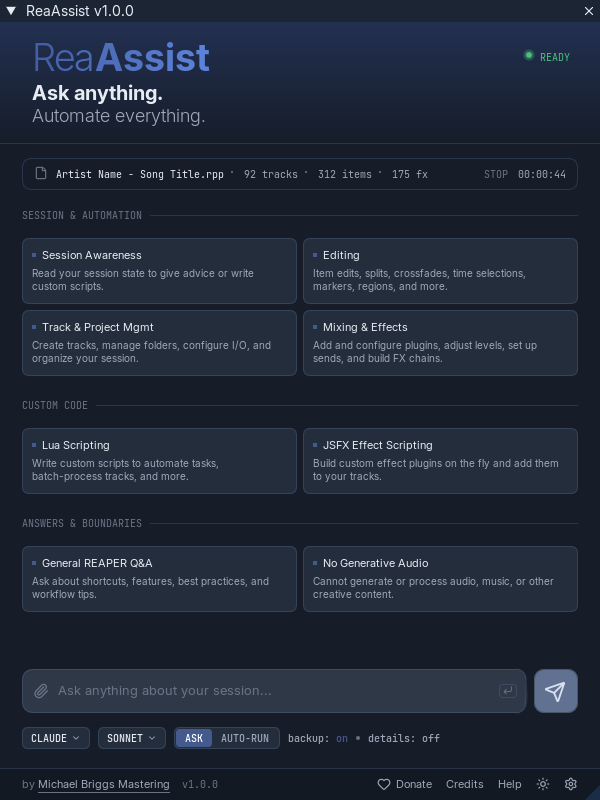
A clean home base
Everything ReaAssist can do, on one screen.
Open a chat and you see the full surface area at a glance: session work, track and project management, mixing and effects, custom Lua and JSFX, plus general REAPER Q&A. One click jumps straight into a starter prompt for that area.
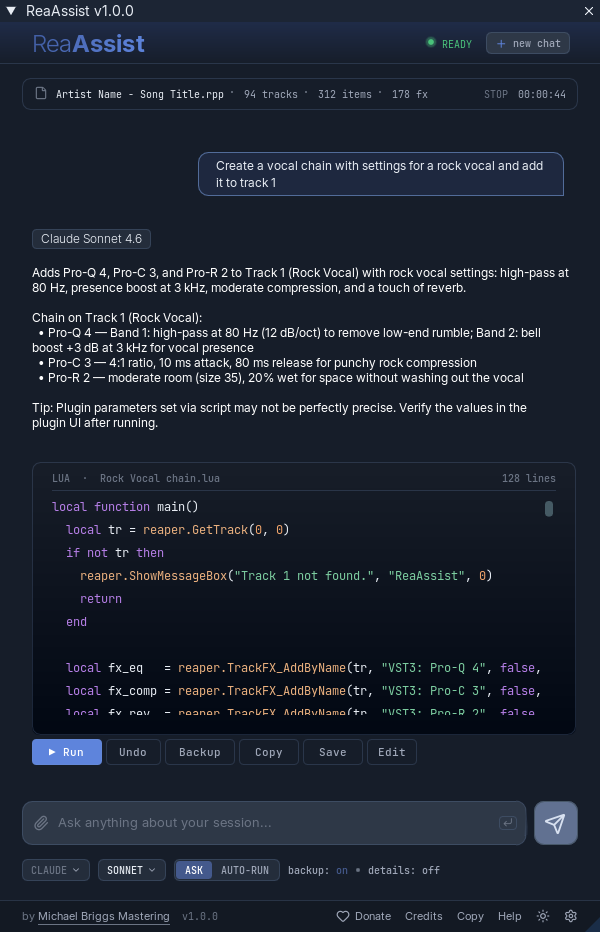
Real output, ready to run
Code arrives in a window with a Run button.
Ask for a vocal chain, ReaAssist drafts the Lua, explains what it does, and lets you run, edit, copy, save, or undo it without leaving the chat. JSFX scripts get a "Add To Selected Track" button that drops them onto a track immediately.
- Auto-backup of your session before any auto-run
- Per-message Undo to roll back what a script did
- Built-in safeguards that flag dangerous code before it runs
- Choose a tested API provider, with advanced local/custom setup still available
Provider API access
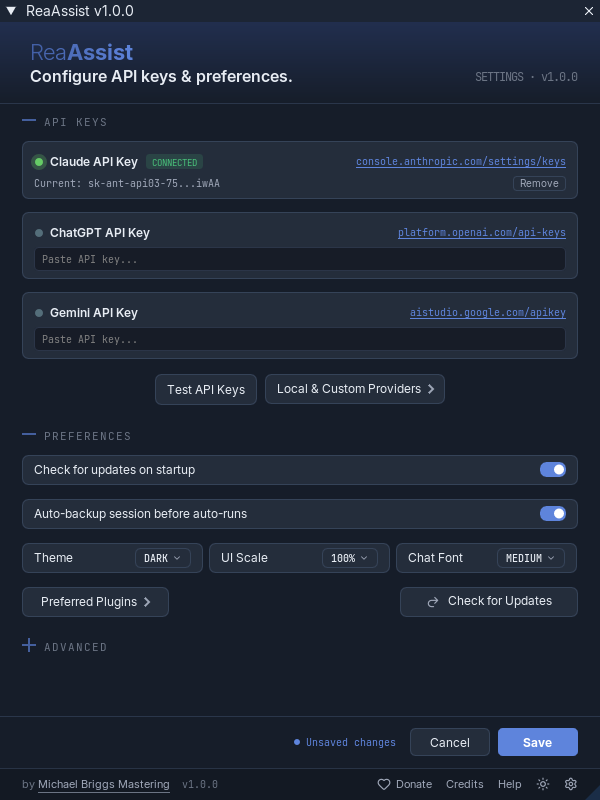
Connect a tested provider.
ReaAssist itself is free. Bring your own Claude, OpenAI, Gemini, or DeepSeek API key and pay that provider directly for what you use. Consumer chat subscriptions are separate from provider API access and cannot be used in ReaAssist. Provider keys stay on your machine, and normal chat requests go directly to your chosen provider.
Local servers and custom endpoints remain available as an advanced option. ReaAssist does not guarantee compatibility or result quality for these setups, and capable local models may require powerful hardware. Custom online endpoints still send data to that service.
Make it yours
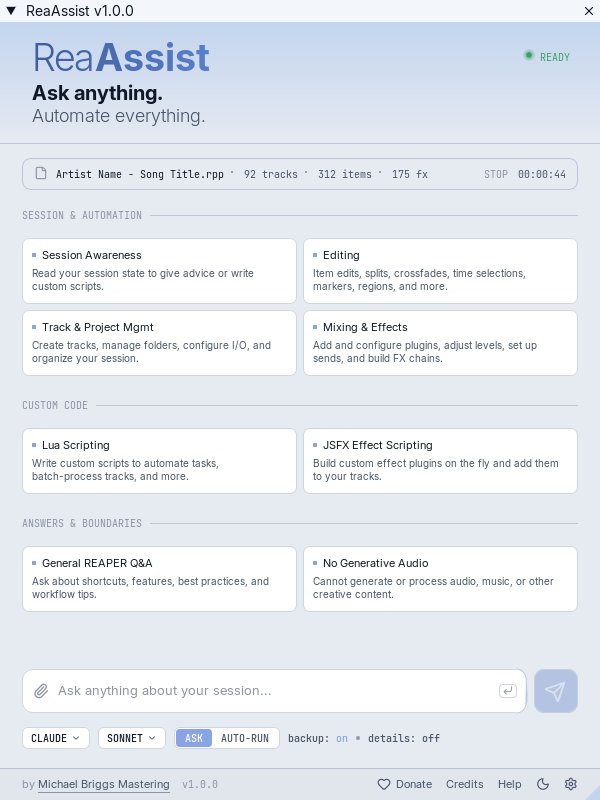
Light or dark, your call.
Both themes are included. Toggle between them from the footer at any time, or let ReaAssist follow your system theme on launch.
What it is, what it isn't
A workflow tool, not a creative one.
ReaAssist was designed to give you modern tools that aid the technical side of your productions and improve your workflow. It is purely a workflow assistant and is not designed or intended to be used for any type of generative creative content.
A REAPER-aware assistant that automates editing, mixing, project setup, scripting, and answers REAPER questions in context. You stay in the driver's seat, it handles the tedious technical work.
Not a generative audio tool. ReaAssist will not generate or process audio, write music, mimic an artist, or produce other creative content. The creative decisions stay with you.
Who it's for
Built for working REAPER users.
Speed up routine session setup, edits, FX chains, and template work, without writing scripts by hand.
Automate gain staging, routing, and chain building. Ask REAPER questions instead of hunting through menus.
Get a head start on Lua and JSFX. Use ReaAssist as a session-aware pair programmer for the API.
Install
Install via Direct Download
The fastest way to get ReaAssist up and running. Download the installer script, load it once from REAPER's action list, and the rest is automatic, including any required dependencies.
-
Download ReaAssist_Installer.lua
to your computer.
Any location is fine, like your Downloads folder or Desktop.
Screen reader users should install OSARA first with REAPER closed, then download ReaAssist_Installer_Screen_Reader_Mode.lua. - Open REAPER and go to Actions › Show Action List.
- Click the New Action button and select Load ReaScript.
- Find the downloaded installer file and open it.
- Click Run. That's it, the installer takes care of the rest.
Requirements: REAPER and a provider API key. Consumer chat subscriptions cannot be used; a compatible local/custom endpoint is available as an advanced alternative. ReaAssist handles ReaImGui and the rest of the visual-interface setup. Screen Reader Mode requires OSARA; install OSARA with REAPER closed, then reopen REAPER before running Screen Reader Mode.
Need setup help? Read the manual quick start
Install
Install via ReaPack
ReaAssist installs through ReaPack, the standard package manager for REAPER. If you don't have ReaPack, grab it first from reapack.com.
- In REAPER, open Extensions › ReaPack › Import repositories...
- Paste the repository URL below and click OK.
- Open Extensions › ReaPack › Browse Packages, search for
ReaAssist, right-click and Install. -
Run the script
ReaAssist.luafrom the Actions list, then add a provider API key on the first-run screen.
Screen reader users should install OSARA first with REAPER closed, then chooseReaAssist_Screen_Reader_Mode.luafrom the Actions list.
https://raw.githubusercontent.com/michaelbriggsaudio/mbriggs-reaper/main/index.xml
Requirements: REAPER, ReaPack, and a provider API key. Consumer chat subscriptions cannot be used; a compatible local/custom endpoint is available as an advanced alternative. ReaAssist handles ReaImGui and the rest of the visual-interface setup. Screen Reader Mode requires OSARA; install OSARA with REAPER closed, then reopen REAPER before running Screen Reader Mode.
Need setup help? Read the manual quick start
Source code lives at github.com/michaelbriggsaudio/mbriggs-reaper.
Credits
Brought to you by Michael Briggs Mastering.
Michael Briggs is an award-winning audio engineer and producer based in Denton, Texas, available for production, mixing, recording, and mastering. He has worked with over 400 artists on more than 3,000 songs across just about every genre. Voted Best Producer and Best Audio Engineer in North Texas.
ReaAssist was designed to give you modern tools that aid the technical side of your productions and improve your workflow. This is purely a workflow assistant and is not designed or intended to be used for any type of generative creative content.
Contact
Two inboxes, two purposes.
Plugin questions, bug reports, suggestions, and feedback go to the support address. For audio work (mixing, mastering, production, recording), use the separate audio-work address below.